
THE SHORT ANSWER
Here’s where to start.
To fix AI game code, reproduce the bug from a known starting state, capture the exact error or wrong behaviour and compare it with the last working version. Ask AI to inspect the relevant files and propose the smallest fix. Repeat the original steps and test nearby behaviour before saving a new checkpoint.
1. Preserve the last version that worked
Before asking for another fix, save the current files and identify the most recent working checkpoint. Keep any unfinished changes you care about. A version-control diff or a comparison with a saved copy helps you see what changed between “the game ran” and “the game broke.”
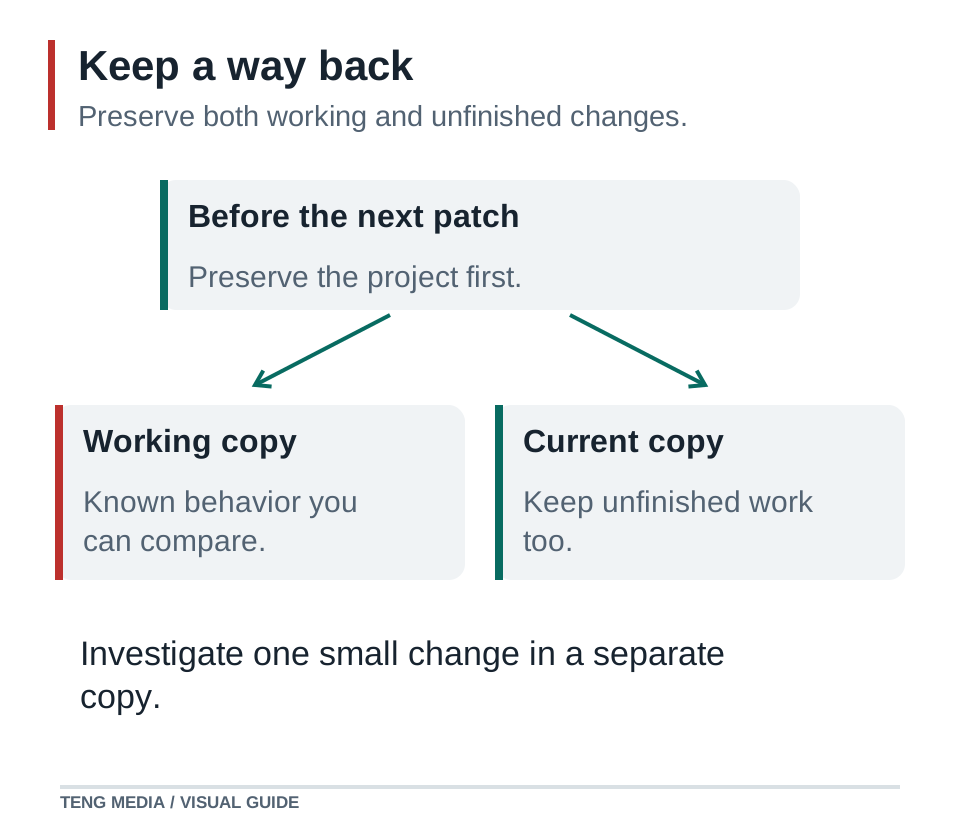
Avoid stacking speculative patches. If movement breaks after adding collectibles, investigate that change first. Do not simultaneously replace the movement system, install a physics package and redesign the level. Too many changes make it hard to tell which one helped.
2. Describe a bug another person could reproduce
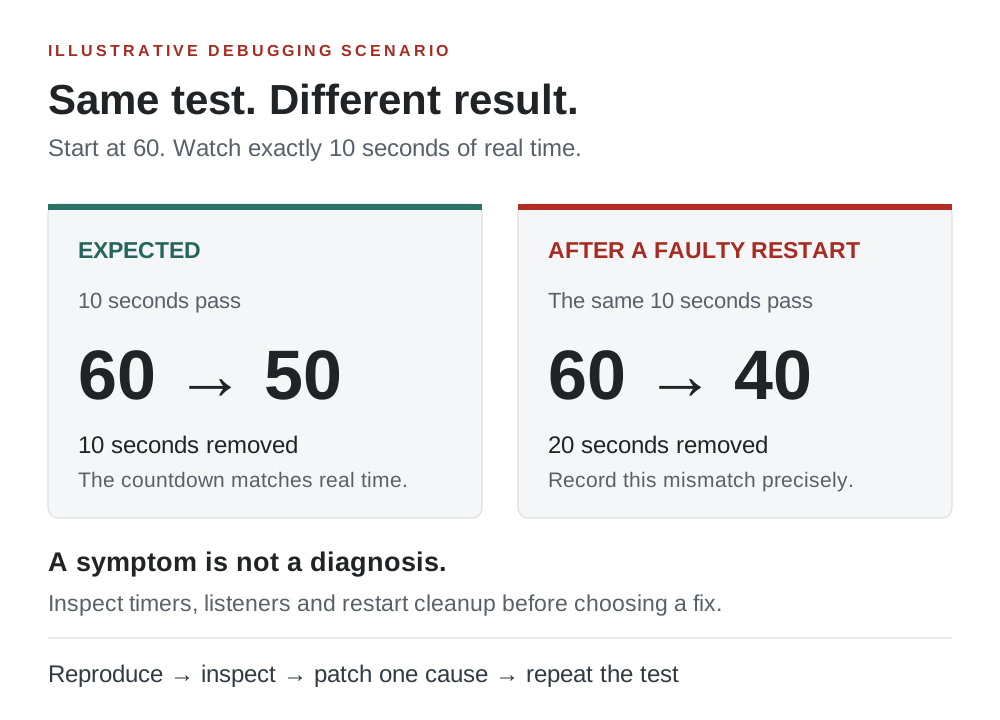
“Restart is broken” is a starting observation. A useful bug report states the initial conditions, exact actions and visible result. For our Lantern Run example, imagine a timer that seems normal on the first round but gets faster after restarting. This is an illustrative debugging scenario, not a report from a shipped game.
| Field | Example bug report |
|---|---|
| Environment | Engine, exact version, browser or device |
| Start state | Fresh launch, new round, 60-second timer |
| Actions | Lose to the enemy, select Restart, watch ten seconds of play |
| Expected | About ten seconds leave the game timer |
| Actual | About twenty seconds leave the game timer |
| Repeat | Restart again and compare the rate |
Copy the complete relevant error text when there is an error. If there is no error, describe the wrong behaviour and what still works. A short recording or screenshot can help with visual problems, but include written steps so the assistant knows what led to the image.
3. Ask for evidence before choosing a cause
A timer that speeds up after Restart could have more than one cause. Perhaps a previous timer was never stopped, an event handler was registered twice, or two update paths now change the same value. Those are hypotheses. The code and a reproduction should decide between them.
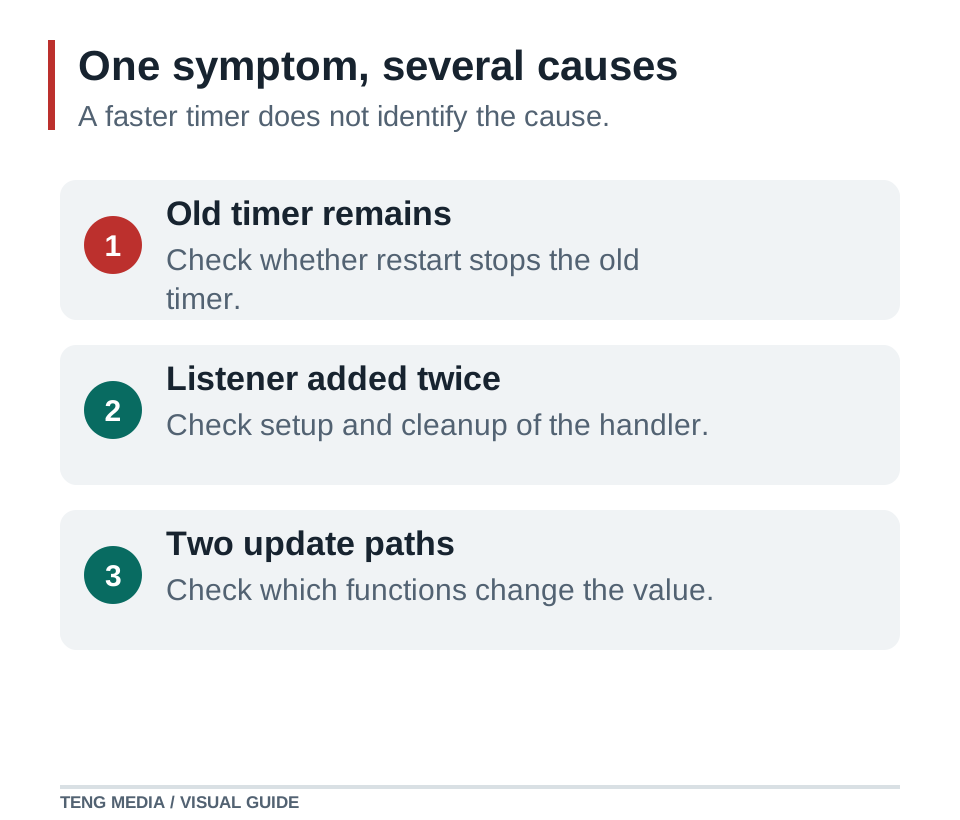
- Find where the round timer is created, updated and stopped.
- Find every restart path and any listeners or timers it registers.
- Check whether losing and winning both perform cleanup.
- Look for more than one place subtracting time.
- Compare that code with the last working checkpoint.
Ask the assistant to identify exact files and functions that support its explanation. If it needs temporary logging, limit the logs to relevant state and remove them after verification. Do not let a plausible explanation become a claimed diagnosis without evidence.
4. Request the smallest fix that addresses the cause
Investigate the round timer in [engine + exact version].
From a fresh launch it runs normally. After losing and pressing Restart, it counts down about twice as fast.
Reproduction: [exact steps]. Relevant error/log: [text, or none].
Last working checkpoint: [version]. Recent change: [change].

Inspect all timer creation, update, cleanup and restart paths. Explain the cause with file/function evidence before editing. If duplicate timers or handlers are responsible, fix their lifecycle using the existing architecture. Do not compensate by changing the countdown speed. Keep movement, scoring and art unchanged.

Verify a fresh round, three consecutive restarts, enemy loss, timeout and a win. Report what you actually tested and any remaining uncertainty.
The instruction about countdown speed matters. Halving the timer speed might hide the symptom for one restart while making the first round wrong and leaving the underlying duplicate work intact. The same principle applies to collision bugs: changing a magic number is not enough if a collision event fires twice.
Read the patch. A restart fix should have a clear connection to the round’s lifecycle. If the assistant changes unrelated systems, ask why each change is necessary before accepting it. Keep the original reproduction steps unchanged so the test remains meaningful.
5. Test the fix and the behaviour next to it
A successful build is useful, but it cannot tell you whether a lantern is counted twice or a round restarts cleanly. Match the check to the claim. For the example timer fix, play through more than the path that originally failed.
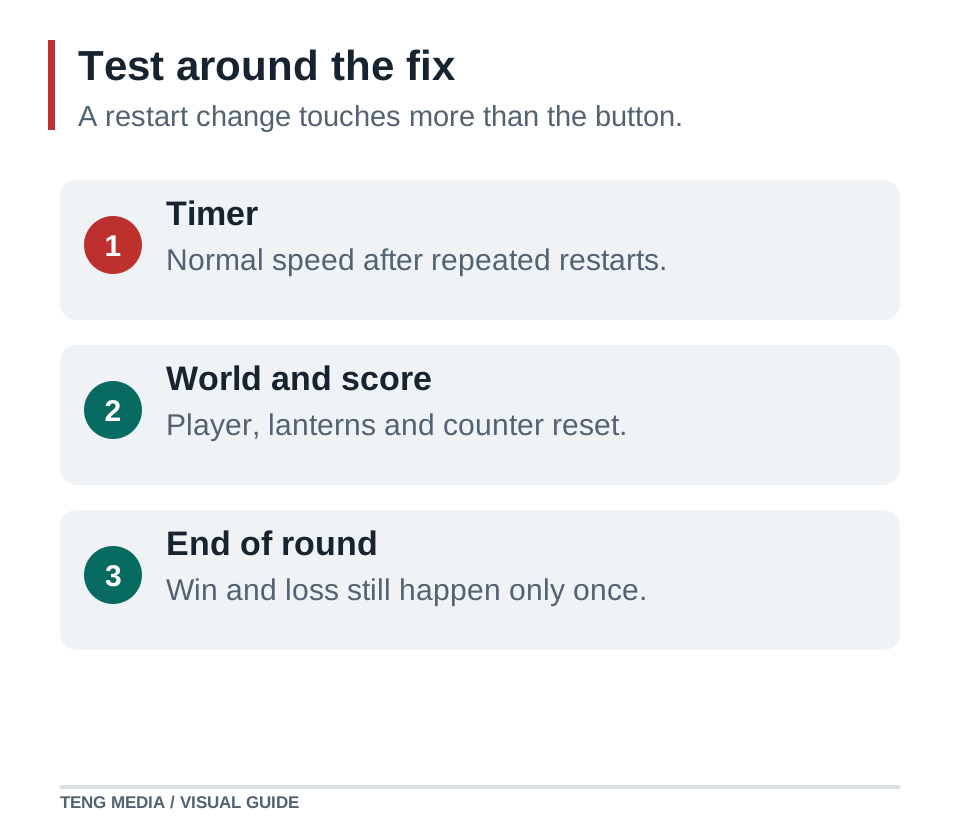
- Fresh launch: confirm the timer begins at 60 and decreases at the intended rate.
- Enemy loss: confirm the round ends once and the timer stops.
- Restart three times: confirm the timer resets and does not get progressively faster.
- Timeout: confirm the timer reaches zero, stops there and shows a loss.
- Win: collect all five lanterns and reach the gate; confirm the timer and score stop changing.
- After every restart: confirm movement, lantern count, enemy position and gate state reset correctly.
If your project already has automated tests, add a focused regression test for the failure when practical. Still check visible gameplay. A unit test of score reset does not prove that the restart button is connected correctly in the scene.
6. Know when to step back instead of asking for another patch
If two attempts change the code without improving the reproduction, pause the patch cycle. Ask for a summary of what is known, what was tried and what evidence is missing. Return to a preserved working version or isolate the problem in a smaller scene, while keeping a copy of your current work.
For engine API errors, confirm the installed version and consult that version’s official documentation. For missing assets, check names, paths and letter case in the shared build. For problems that appear only online, compare the browser console and network failures with the local version before rewriting gameplay code.
Once the original problem and nearby checks pass, save a checkpoint with a plain-language note: “Restart now clears the previous round timer; verified fresh round, win, loss and three restarts.” Your next feature starts from evidence you can trust.
Common questions
Why does AI keep breaking another part of my game?
Possible causes include missing project context, requests that combine too many changes, or fixes that ignore shared state. Ask the assistant to inspect existing systems, constrain the change and repeat checks for neighbouring features. The actual cause still needs investigation.
Should I paste the entire project into a chat?
Start with the error, reproduction steps and relevant files. If your coding assistant has authorised access to the project, ask it to inspect those files directly. Avoid sharing secrets or unrelated private data.
When should I consider a bug fixed?
When the original reproduction no longer fails and the relevant nearby checks pass in the actual target environment. A confident explanation or a successful code edit alone does not establish that the bug is fixed.
Sources & further reading
References checked on October 3, 2026. Use documentation that matches your installed engine version.
- Godot: Overview of debugging tools ↗Official reference for inspecting runtime problems in Godot. The Lantern Run bug report and checklist are illustrative examples.
- Chrome DevTools: Console overview ↗Official reference for inspecting messages and errors in browser builds.